
Document Upload Skill
Bringing Files into Your Workflow
Your Mattr AI Agents often need to receive files from various sources to kick off or continue a process. Whether it's a customer submitting a document, or your workflow picking up a file from a web link, the Document Upload Skill is your workflow's digital "inbox" and "filing assistant." It lets you easily bring files into Uptiq.ai and store them exactly where they need to go.
Collecting Customer Loan Applications
Imagine your financial institution uses a Mattr workflow to automate the initial steps of a loan application process. A crucial first step is to collect the actual loan application form and supporting documents (like ID proof or income statements) directly from the customer.
The Challenge:
Manually collecting and organizing diverse documents from many applicants can be slow, error-prone, and create delays. You need a secure and automated way for customers to submit their files directly into your workflow.
The Solution:
By starting your loan application workflow with a Document Upload Skill, you can provide a seamless and secure way for customers to upload their documents. These files are then automatically ingested and stored within Mattr, ready for your AI Agent to process.
Setting Up the Document Upload Skill for Loan Applications
Let's walk through how to configure the Document Upload Skill to collect a PDF loan application from a customer and save it to your persistent Uptiq.ai storage.
Locate the Skill: Drag and drop the Document Upload Skill onto your Workflow Builder canvas. This will likely be the very first skill in your "Loan Application Intake" workflow.
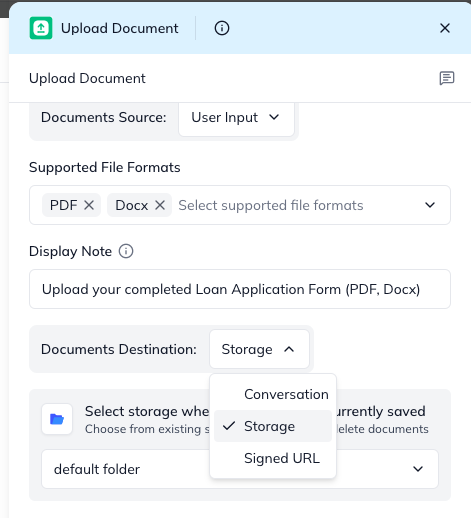
Configure "Source": First, tell the Skill where the loan application will be coming from.
Click on the Document Upload Skill to open its configuration panel.
Under the "Source" option, select "User Input". This tells the Skill that a person (your customer) will be uploading the file.
Specify "Supported File Types" and "Display Message": To guide your customers, you'll want to specify what kind of files they can upload and provide clear instructions.
In the Supported File Types field, enter the allowed file extensions, separated by commas (e.g., pdf). This ensures customers only upload the correct format.
In the Display Message box, type a clear instruction that your customer will see (e.g., "Please upload your completed Loan Application Form (PDF)").
Choose "Destination": Now, tell the skill where you want to save the uploaded loan application. For long-term records like loan applications, you'll typically use persistent storage.
Under the "Destination" option, select "Storage". This will save the document permanently within your Mattr-managed storage.
You can optionally specify a Storage Path (e.g., new-applications/customer-xyz/) to organize documents into specific subfolders within your storage ID.
Understanding the Outcome (Skill Output)
After a customer uploads a document through this Skill, it passes on important information to the next steps in your workflow.
documentId: This is a unique ID for the uploaded document. This is crucial! You'll use this documentId in later nodes if you need to fetch the document again, convert it to an image, extract data from it, or eventually delete it. The documentId will be null in case of destination being a signed url.
error: A string with a descriptive error message. In case of failure, these will be system error messages. This will be null if the operation was successful.
mimeType: This tells you the type of file that was uploaded (e.g., application/pdf for a PDF, image/jpeg for a JPEG picture). This can be helpful for conditional branching in your workflow.
statusCode: A number indicating the result of the upload attempt:
200: Success –File uploaded successfully.
400: Bad Request – Failed: an error occurred
500: Internal Server Error – Partial: Not applicable for single file uploads, but useful for other skills.
By using the Document Upload Skill, you can automate the crucial first step of collecting documents, making your processes smoother, more reliable, and ready for further AI-powered automation!
Last updated