
Document To Image Skill
Preparing Documents for AI Analysis
Your Mattr AI Agents can do amazing things with documents, but sometimes, especially when working with advanced AI models (like Large Language Models [LLMs]), documents need a special preparation step. Many LLMs understand images much better than raw PDF or Word files for visual analysis. That's where the Document To Image Skill comes in!
Visually Classifying Financial Statements with AI
Imagine your workflow receives various financial documents – some are PDF tax returns, others are scanned balance sheets (also PDFs). You want your AI Agent to look at the visual layout of these documents to accurately classify them (e.g., "Is this a Balance Sheet?" or "Is this an Income Statement?"), because the layout often gives crucial clues that text alone might miss.
The Challenge:
Many powerful AI models are trained to "see" and understand information from images, not directly from complex document formats like PDFs. Sending a raw PDF might not get the best classification results based on visual cues.
The Solution:
By using a Document To Image Skill, you can convert each page of a financial document into a high-quality image. Your AI Agent can then easily "see" and analyze these images, leading to more accurate visual classification.
Setting Up the Document To Image Skill
Let's walk through how to set up this Skill to convert your financial documents into images for AI analysis.
Locate the Skill: Drag and drop the Document To Image Skill onto your Workflow Builder canvas. Place it in your workflow right after the Skill that provides the document (e.g., a "Document Upload Skill" or "Document Fetch Skill").
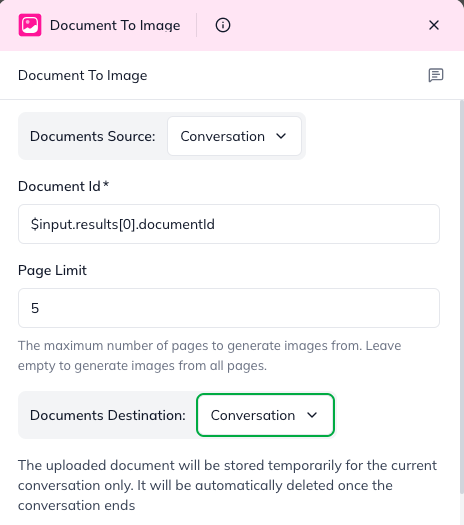
Configure "Document ID": This tells the Skill which document to convert.
Click on the Document To Image Skill to open its configuration panel.
In the "Document ID" field, you'll typically use the output from the previous Skill that provided the document (e.g., $input.documentId if it's a single document, or $input.results[0].documentId if it's the first document fetched from a list).
Set "Page Limit" (Optional, but Recommended for AI):
Purpose: For classification, you often don't need to convert every page of a very long document. The first few pages usually contain enough visual information. Setting a page limit saves processing time and resources.
Configuration: Enter the maximum number of pages you want to convert (e.g., 5). The node will start from page 1.
Choose "Output Storage": This is where the generated images will be saved.
Conversation: For temporary images (most common for immediate AI processing). The images will be available to subsequent skills in the same conversation, then removed.
Storage: For persistent storage of the images. If you choose this, you can also provide the Storage Path (optional).
Understanding the Outcome (Skill Output)
After the Document To Image Skill runs, it passes on information about the newly created images to the next steps in your workflow.
statusCode:
200 success –All pages were converted to images successfully.
400 or 500 : Bad Request – The entire operation failed
error: If the operation failed, this field will contain a message about what went wrong.
imagesResult (Details for Each Image): This is a list (an "array") where each item describes one of the converted pages:
pageNumber: The original page number of the document that was converted to this image.
images: This will contain a list of image details. The most important is the new documentId for the generated image (e.g., {"documentId": "img_01f47ac10b"}). This is the ID you'll pass to your AI Agent!
sheetName - only present in case of Excel sheets
By incorporating the Document To Image Skill, your workflows can effectively bridge the gap between complex document formats and image-optimized AI models, making your document analysis smarter and more accurate!
Last updated