
Document Fetch Skill
Accessing Stored Information
Your Mattr AI Agents often need to work with documents that have been saved earlier in a conversation or in your long-term storage. The Document Fetch Skill is like your workflow's retrieval specialist – it helps you quickly pull up these files when you need them!
Retrieving Customer Agreements for Review
Imagine your company uses Mattr workflows to manage customer onboarding. During this process, various agreements (like service contracts or privacy consents) are uploaded and saved to your persistent storage. Later, a customer might call with a question, and your AI Agent needs to quickly access their specific signed agreement to provide accurate information.
The Challenge:
Customer agreements are stored in your Mattr system, but finding and accessing the right one manually can be slow. Your AI Agent needs a quick, automated way to retrieve specific documents based on a customer query.
The Solution:
By integrating a Document Fetch Skill into your customer service workflow, your AI Agent can instantly pull up the relevant agreement using its unique Document ID, enabling faster and more accurate customer support.
Setting Up the Document Fetch Skill
Let's walk through how to set up this Skill to automatically fetch a customer's agreement from your persistent Uptiq.ai storage.
Locate the Skill: Drag and drop the Document Fetch Skill onto your Workflow Builder canvas. Place it in your workflow where you need to access a document (e.g., after a Skill that identifies the customer and retrieves their unique "Agreement Document ID").
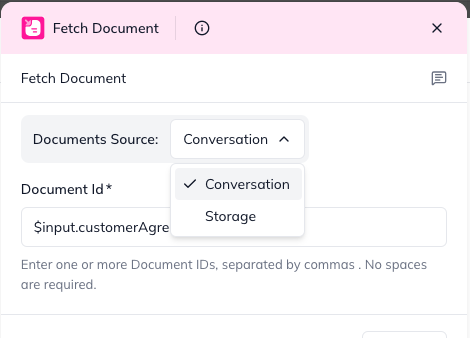
Configure "Documents to Fetch": This is where you tell the Skill which documents to retrieve.
Click on the Document Fetch Skill to open its configuration panel.
In the "Documents to Fetch" section, you'll provide the Document ID of the file(s) you want to retrieve.
Tip for Automation: You'll typically get this Document ID from an earlier skill’s output (e.g., if you store customer details with their agreement ID). You can reference this using the $input syntax (e.g., $input.customerAgreementId).
You can add multiple Document IDs here if your workflow needs to fetch several related files at once.
Specify the "Source": Tell the Skill where the documents are currently stored in Mattri.
Next to each DocumentId you've added, choose its Source.
Conversation: Select this if the document was temporarily saved within the current workflow's conversation context. Remember, documents in conversation are only accessible within that specific conversation.
Storage: Select this if the document was saved to your persistent Mattr storage.
You can specify the StoragePath (e.g., customerX/agreements/) if the document was stored in a specific subfolder.
Understanding the Outcome (Skill Output)
After the Document Fetch Skill runs, it will pass on the retrieved document's information to the next Skills in your workflow.
Overall statusCode:
200 success –All requested documents were retrieved without issues.
207 partial - Some documents were retrieved successfully, but others failed (e.g., not found)
400 or 500 : Bad Request – The entire operation failed (e.g., no document IDs were provided)
results (Detailed Document Information): This is a list (an "array") where each item gives you full details about one of the documents you asked for:
documentId: The ID of the document it tried to fetch.
url: The download url of the file with your contents. This is what your next Skill will use for processing (e.g., summarization, data extraction).
mimeType: The file type (e.g., application/pdf, image/jpeg).
fileName: The document's original file name.
statusCode: The HTTP status code for that specific document's retrieval (e.g., 200 for success, 404 if not found, 403 if unauthorized).
error: If a document fetch operation failed, this will contain a message about what went wrong (e.g., "Document not found") for the current document.
By using the Document Fetch Skill, your workflows become smarter and more responsive, are able to quickly pull up the exact information needed to serve your customers or complete your business processes automatically!
Last updated