
PII Guard Skill
Protecting Sensitive Information
Your Mattr AI Agents handle a lot of text, and sometimes that text might contain sensitive Personally Identifiable Information (PII) like Social Security Numbers (SSNs), email addresses, or phone numbers. While Mattr has built-in protections, sometimes you need to explicitly mask this data within a specific workflow step, especially if it's coming from an external system.
The PII Guard Skill is your workflow's data protection specialist. It automatically detects and replaces sensitive information in any text with generic placeholders (like [SSN] or [EMAIL]), ensuring that PII is anonymized before further processing, storage, or sending to other systems.
Masking Customer PII from a Database Query
Imagine your workflow makes an API call or a database query to retrieve customer information. This query might return a text string containing a customer's name, SSN, and email address. Before sending this data to a less secure system (like a temporary log file) or an LLM for analysis, you want to ensure all PII is masked.
The Challenge
Data retrieved from external systems might contain sensitive PII that you don't want to expose or store unmasked in certain parts of your workflow.
The Solution
By using a PII Guard Skill, you can automatically scan the retrieved text and replace any detected PII with safe, generic placeholders. This protects customer privacy and helps maintain compliance.
Setting Up the PII Guard Skill
Let's walk through how to set up this Skill to mask PII from a text string.
Locate the Skill: Drag and drop the PII Guard Skill onto your Workflow Builder canvas. Place it in your workflow immediately after the node that provides the text containing potential PII (e.g., an "API Call Skill" or "Database Query Skill").
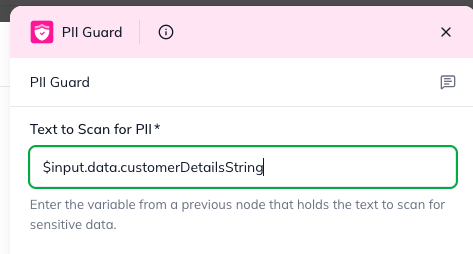
Configure "Text to Scan for PII": This is the only configuration field for this Skill.
Click on the PII Guard Skill to open its configuration panel.
In the "Text to Scan for PII" field (labelled as "Input" in the technical schema), you'll link the output from your previous Skill that contains the text.
Example: If your "API Call Skill" returned customer details in its data output, you would enter $input.data.customerDetailsString (assuming customerDetailsString is the field containing the text).
Understanding the Outcome (Skill Output)
After the PII Guard Skill runs, it provides the masked text to the next steps in your workflow.
maskedData: This is the most important output. It's the original text, but with all detected PII replaced by placeholders.
Example Input: "Hello, this is Michael. My SSN is 123-45-6789 and my email is [email protected]. Please call me at (555) 123-4567."
Example Output: "Hello, this is Michael. My SSN is [SSN] and my email is [EMAIL]. Please call me at [PHONE]."
error: A string with a descriptive error message. This will be null if the operation was successful.
statusCode: A number indicating the result of the masking attempt:
200: Success – PII masking completed successfully.
400: Bad Request – This means the input text was invalid (e.g., null or empty).
500: Internal Server Error – An internal error occurred during processing.
By using the PII Guard Skill, you add an essential layer of data protection to your workflows, ensuring sensitive information is handled responsibly and securely!
Last updated